If you run a blog, hobby site, online store, or retirement project website, you may have heard people talk about Google Analytics. Whether it’s a blog about fishing, a prepping guide, an online store, or a personal project—can be both rewarding and a little confusing at times. If you’re like me, you may wonder who is visiting your site, what pages they enjoy most, or whether anyone is clicking the links you carefully added.
That’s where Google Analytics comes in. Google Analytics is a free, easy-to-use tool that quietly keeps track of how people find and use your website, giving you clear answers instead of guesswork. The best part is that you don’t need to be “good with computers” to benefit from it. Google Analytics doesn’t show private information or anything complicated—it simply turns visitor activity into simple charts and numbers you can understand. With just a few minutes a week, you can learn what’s working, what needs improvement, and how to grow your website at your own pace, without stress or technical headaches.
Google Analytics is simply a free tool that shows you who visits your website, what they look at, and how they found you. Whether you’re sharing fishing tips, prepping guides, product reviews, or running an online store.
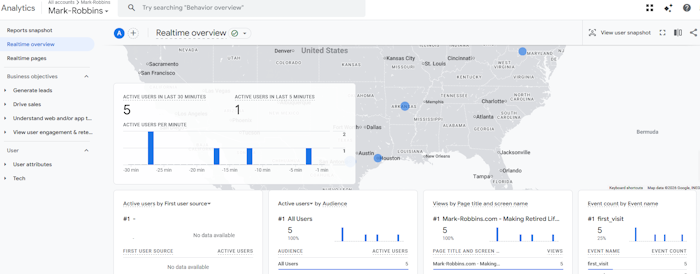
This Google Analytics for seniors guide is written especially for senior citizens and beginners. No tech jargon overload. No coding required.
Ready to dig into it?
What Is Google Analytics (in plain English)?
Google Analytics is a free tool from Google that shows you how people use your website. It tells you how many visitors you have, which pages they read, how they found your site (such as through Google or Facebook), and what type of device they are using. Think of it as a visitor logbook for your website, that helps you understand what’s working and what could be improved.
Google Analytics for seniors answers questions like:
- How many people visited my site today?
- Which blog posts are most popular?
- Did visitors come from Google, Facebook, or email?
- Are people clicking my affiliate links?
- Are visitors using phones or computers?
Once you understand the basics of Google Analytics for seniors, it will become one of the most powerful tools you can use to grow your website
Why Seniors Should Care About Google Analytics
If you run your website like a business, are serious about growing your site’s audience, and are looking to make money, YOU NEED ANALYTICS! Google Analytics will help you take the guesswork out of running a website. Instead of wondering which articles people enjoy or whether your links are being used, you can see real answers in simple reports. This saves time, reduces frustration, and helps you focus on topics your readers truly care about.
Whether your goal is sharing knowledge, staying mentally active, or earning a little extra income in retirement, Google Analytics helps to give you clear direction and confidence that your efforts are paying off.
You might be thinking: “I just write blog posts. Why do I need this?” Here’s why it matters, especially for retirement projects:
- Grow your audience: Find out what topics people actually enjoy reading.
- Make more affiliate income: See which pages lead to clicks and purchases.
- Avoid wasting time: Stop writing content nobody reads.
- Improve slowly and safely: No guessing. No stress. Just facts.
What You Need Before Starting To Use Google Analytics
Before you start using Google Analytics, you only need a few simple things: a working website (such as a WordPress site), a free Google account like Gmail, and about 15 minutes to set everything up. No special computer skills or technical knowledge are required. Once those basics are in place, you’re ready to begin tracking your visitors and learning how your site is performing.
That’s it.
How to Set Up Google Analytics (Simple Version)
Setting up Google Analytics is much easier than it sounds, especially for beginners. First, go to analytics.google.com and sign in to your Google account, then click the button that says “Start measuring.” You’ll be asked to create an account and give it a name—this can simply be your website’s name. Next, Google will ask for your website address and a few basic details like your time zone. Just follow the on-screen steps and choose the option for a website (called “Web”).
Once your account is created, you need to connect Google Analytics to your website. If you use WordPress, the easiest way is to install a free plugin such as Site Kit by Google or MonsterInsights. After installing the plugin, it will guide you through signing in to Google and connecting your site—no coding required. When that’s done, Google Analytics will start collecting information in the background, and within a day or so, you’ll be able to see how many people visit your site and what pages they read.
Your First Look At Your Analytics Dashboard (Don’t Panic)
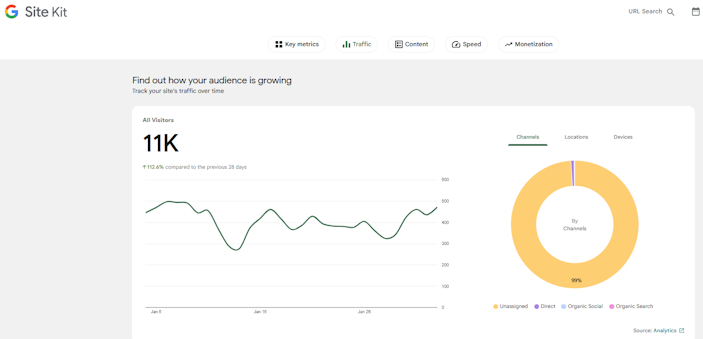
Here are the most common Google Analytics metrics to check, explained in simple, beginner-friendly terms. You don’t need to track everything—just these basics will tell you how your website is doing.
- Users (Visitors): This shows how many real people visited your website during a certain time period. It’s the easiest way to see if your site is growing or slowing down.
- Sessions (Visits): A session is one visit to your site. One person can create more than one session if they come back later. This helps you understand how often people return.
- Pageviews: Pageviews show how many pages were looked at in total. If this number is high, it means visitors are clicking around and exploring your site.
- Top Pages (Most Viewed Pages): This tells you which pages or blog posts are most popular. These are the topics your visitors enjoy the most and are worth creating more content about.
- Traffic Source: This shows where visitors came from, such as: Google search, Facebook, Email, or Direct (typing your web address). Knowing this helps you focus on what’s bringing in visitors.
- Average Engagement Time: This shows how long visitors stay on your site. Longer times usually mean people are reading and finding your content helpful.
- Bounce Rate (or Engaged Sessions): This tells you whether visitors leave quickly or stay to read more. A high bounce rate may mean a page needs clearer information or better formatting.
- Device Type: This shows whether visitors are using a computer, phone, or tablet. It helps you make sure your site works well for everyone, especially seniors who often prefer desktops.
- New vs Returning Visitors: This shows if people are coming back to your site. Returning visitors are a good sign that your content is useful and trusted.
- Link Clicks (If Tracked): If you use affiliate links or important buttons, this shows whether visitors are actually clicking them.
Tracking Affiliate Links (Very Important)
So.. one question you might be asking yourself is: “Are people clicking my affiliate links?”
Tracking links means seeing what people click on—such as affiliate links, buttons, or important menu items. This is especially helpful if you want to know which pages actually lead to action, not just visits.
Option 1: The Easiest Way (Recommended for Beginners)
If you use WordPress, the simplest method is to use a plugin.
Step 1: Install a plugin
Install one of these free plugins:
- Site Kit by Google (very beginner friendly)
- MonsterInsights
- Pretty Links (best for affiliate links)
These plugins automatically connect your site to Google Analytics and start tracking clicks without any coding.
Step 2: Turn on link tracking
Inside the plugin settings, make sure options like:
- “Outbound link tracking”
- “Affiliate link tracking”
are turned ON.
Once enabled, clicks are tracked automatically.
Basic Search Engine Optimization: 12 Friendly Beginner’s SEO Tips for Seniors
PrettyLinks
Pretty Links is a WordPress plugin that lets you turn long, ugly URLs into clean, short, branded links using your own website domain. It’s commonly used for affiliate links, email marketing, and social sharing because it looks more trustworthy and lets you track clicks—all from inside WordPress. You can access it here: Pretty Links (WordPress plugin)
What Are Short Links?
Real quick! Let’s talk a bit about the difference between long and short links. A short link is nothing more than a shortened version of a long web address (URL) that’s much easier to read, remember, and share. For example, let’s look at the difference between a long link and a short link for the Amazon Basics Cast Iron Dutch Oven Pot with Lid:
Long Link Example:
https://www.amazon.com/Amazon-Basics-Enameled-Covered-6-Quart/dp/B07Y6TLP4F/ref=ast_sto_dp_puis?th=1
Short Link Example:
If you click both links, you can see that they both go to the same place. You’ll find short links are less intimidating for beginners and seniors, and the short link will fit better in Facebook posts and in printed materials like emails and pdf’s.
How To Add A Pretty Link
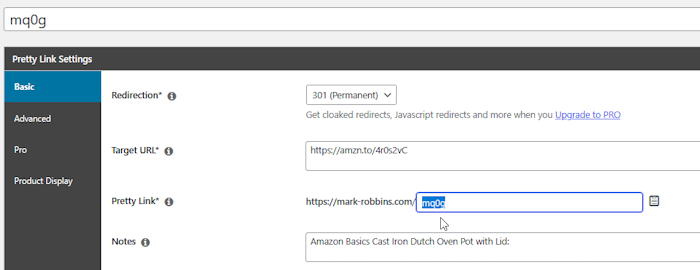
Step 1: Set The Redirect Type
Redirection controls how the link redirects. I recommend you set it to 301 (Permanent). This is best for Affiliate links, Long-term links, and SEO-friendly redirects. This is the most common choice.
Step 2: Add the Target URL
This is where you copy the entire URL you need.
Step 3: Give the PrettyLink A Name
This can be anything you want to use to designate the link. Its up to you
Step 4: Notes
Yeah, this if for your benefit only. You can type in a product description, or whatever you want. It cannot be seen by anyone but you.
And below is our finished Pretty Link URL for the Amazon Basics Cast Iron Dutch Oven Pot with Lid .
The difference is this short link features my domain name. What I like best about using Pretty Links is no matter how many times I use Pretty Link on my web site. Rather than having to go to each post and replace the affiliate link, I can go into my Pretty Link and edit the affiliate link there, and it fixes it all over my website. I won’t know about you, but this is a huge time-saver and convenience for me.
Here’s a clear breakdown of the pros and cons of Pretty Links so you can decide if it’s a good fit for your workflow:
Pros of Pretty Links
- Branded, clean links: Turns messy URLs (affiliate links, tracking links) into readable, memorable links using your own domain.
- Better click-through: Clean, trust-worthy links often get more clicks than long or masked URLs.
- Link tracking and analytics: Built-in click stats (total clicks, unique clicks, time frames, referrers). It helps you see what’s working without external tools.
- Easy to manage and update: If an affiliate link changes later, you just update the Pretty Link — everywhere it’s used updates automatically. Saves time and prevents broken links.
- Redirect options: Supports different redirect types (301, 302, etc.) which can help with SEO and tracking.
- WordPress integration: Manage all your links from inside your WordPress dashboard — no separate service required.
Cons of Pretty Links
- Adds overhead to your site: It’s a plugin, so it uses database entries and can add a tiny amount of processing load. This means on very large sites, many plugins can slow things down.
- Click tracking is basic: Good for high-level stats, but not as advanced as specialized tracking platforms (e.g., Google Analytics, ClickMagick).
- Links can break if you migrate: If you move domains or rebuild the site without care, Pretty Links may need reconfiguration.
- Not ideal for non-WordPress sites: Only works on WordPress. If you have other sites (Shopify, static sites, etc.), you need a different tool there.
- Premium features cost money: Basic version is free, but advanced features (groups, automation, advanced tracking) are in the paid version.
Helpful Google Analytics Terms
| Term | Meaning |
| User | A visitor |
| Session | One visit |
| Pageview | One page viewed |
| Bounce | Left quickly |
| Traffic Source | Where they came from |
| Engagement | Time spent |
How Analytics Helps with Retirement Income
If you are using:
- Affiliate links
- Digital products
- Print-on-demand
- Email newsletters
- Google Analytics Certification: Yes! You can earn a living with data analytics.
Analytics helps you:
- Find money pages
- Improve weak pages
- Test new topics
- Grow steadily
The thing to keep in mind is that even making small improvements based on your Data Analytics can help boost your long-term income streams.
Final Thoughts
You don’t need to be a computer expert. You don’t need to be young. You don’t need technical skills. You only need curiosity and patience. Google Analytics simply helps you answer: “Is what I’m doing working?” For retirees building blogs, hobby sites, or small online businesses, that knowledge is powerful.
Want more practical, experience-backed articles like this? Subscribe to our newsletter today and get expert senior-focused tips, strategies, website updates, announcements and product recommendations delivered straight to your inbox.